Case study · 2026
Anchorline
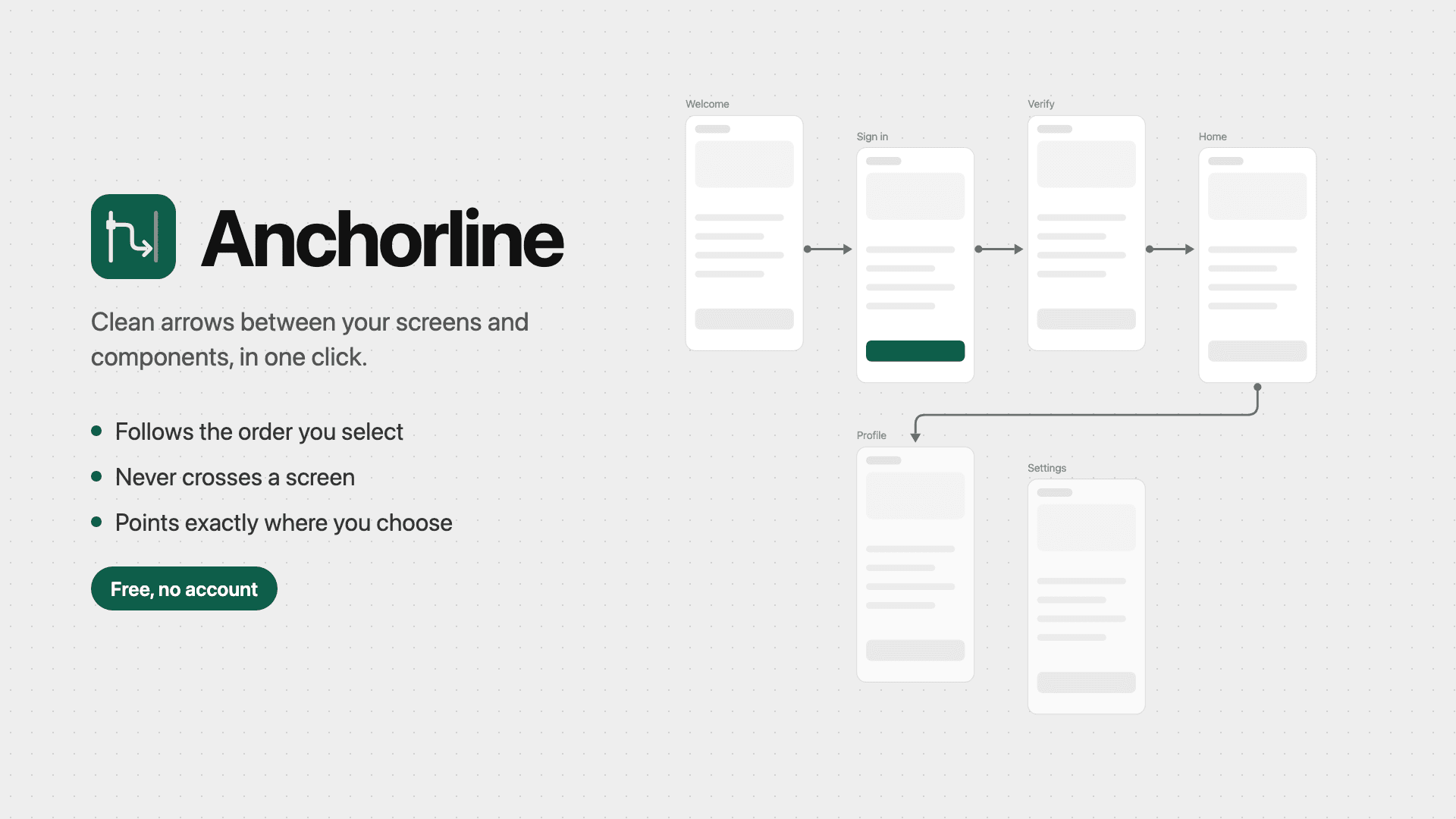
A free Figma plugin that turns a row of screens into a clear user flow. Select the frames, click once, and the arrows appear in the order you picked, route around every screen in the way, and keep up as the design changes.
What
Who it's for
Role
My part
Built with
Status
How it started
Every team that designs in Figma draws the same picture every week: which screen leads to which. Most still draw it by hand.
A flow is how a design gets explained. It shows up in critique, in a review with the product manager, and in the handoff file an engineer builds from. Drawn by hand, the arrows take time, drift out of line, and go stale when someone moves a screen. A stale flow is worse than none, because people trust it.
Each role hits this in its own way. UX designers map journeys across dozens of screens and need the whole path readable at a glance. UI designers connect a button or a component to the screen it opens, so arrows have to start from something smaller than a frame. Product designers walk stakeholders and engineers through a feature, and the flow has to stay right while the design is still moving.
The best-known plugin for this is free for 50 flows per file and then asks for a one-time payment. The brief I set myself was narrow: select frames, get a clean flow, and trust it enough never to redraw it by hand. No account, no network access, and nothing to set up, so any designer can run it on a work file without asking IT first.
Features
A whole flow in one click
Select your screens in the order a person moves through them and click Create flow. The arrows follow your selection order, because people think in taps, not in layouts. If screens arrive together, the order is the one a person would read: rows left to right, columns top to bottom. The same layout always gives the same flow.
Never through a screen
An arrow never crosses a screen or a component. If the direct path is clear, the arrow stays straight. If something is in the way, it routes around at right angles with room to spare, so a dense flow stays readable in a review.
Point it where you mean
Automatic placement is right most of the time, and wrong exactly when it matters, such as a flow that should enter the top of a screen. Select an arrow, and the panel shows each end with 12 points and an Auto option. Click a point and the arrow moves there, still routed around everything else.
Labels for the step
A flow often needs to say why one screen leads to the next: "Tap Sign in", "Yes", "Payment fails". Type a label, and it sits halfway along the arrow as an ordinary text layer that the team can restyle or edit.
Arrows that keep up
While the plugin is open, Follow frames redraws only the arrows attached to the screens you move, and reroutes around anything newly in the way. Update arrows refreshes the whole page and keeps your colors and weights. It reacts only to your own changes, so two designers in the same file never fight over an arrow.
Ready for handoff
Arrows are plain vector layers, so they look like the arrows designers already draw and can be edited like anything else. Before you export screens for a deck or a ticket, turn off Show arrows to hide every arrow on the page, then turn it back on.
Decisions
Tradeoff 01
Plain vectors over native connectors
Figma's connectors follow shapes by themselves, but they exist only in FigJam, not in design files. Vectors work where designers actually work, and they're editable and familiar. The cost is that they don't move by themselves, and Follow frames covers that cost.
Tradeoff 02
A point picker instead of dragging
Dragging an arrow end onto a shape is the most natural control, but plugins can't draw on the canvas. Twelve fixed points per screen give less freedom. They're also impossible to miss, easy to undo, and they survive every redraw.
Tradeoff 03
One job, free for everyone
No accounts, payments, or network access. A team can adopt it on a client file the same day, with no procurement and no security review. A narrower tool is also easier to trust.
The plugin
Outcome
The goal was a free plugin good enough that a designer draws a flow once and never touches the arrows by hand. It launched recently, so it's too early to say whether it meets that bar in real use.
It's live on the Figma Community, and the following user count updates daily. Feedback from designers comes here once there's enough real use to report.
From the Figma Community
- Users
- 36
Against the product goal
Arrows in selection order in one click, routed around every screen, attached where the designer points them, labeled where a step needs explaining, and kept current as screens move. Every action is a single undo step.
What this can't show
Whether teams prefer it to the tools they already pay for. Only people using it on real files can answer that.
The lesson was to read the platform before designing for it. The most natural interactions, arrows that stick to screens and handles you drag on the canvas, were the ones the API ruled out. Designing around those limits early is what made the rest of the product fit together.